
Thermalright Trofeo Vision
4.3Editor score
9.16 inch wide screen
USB-C plug and play
Lightweight compact design
This guide compares the top LCD screens for PC cases to help you choose the best display for monitoring stats and customizing your gaming rig aesthetics.
Adding an LCD screen to your PC case transforms a standard build into a dynamic display hub. These panels let you monitor real-time system stats, play custom animations, or even use the screen as a secondary monitor for enhanced productivity and style.
We evaluated ten leading LCD screens based on resolution, connectivity options, software support, and mounting flexibility. Our analysis focuses on how easily each unit integrates into modern cases while delivering clear visuals and reliable hardware monitoring capabilities for enthusiasts.
Each pick highlights unique strengths from budget-friendly panels to premium wide-format displays. Note that availability and pricing may fluctuate over time so always check the current listings before making your final purchase decision for your specific setup needs.
4.3Editor score

4.4Editor score

4.2Editor score
The following table provides a side-by-side overview of the top ten LCD screens currently available for PC case integration. Compare screen sizes, resolutions, connection types, and key features to find the model that aligns with your build goals and hardware capabilities.




The Lian Li SM088X stands out as a top-tier choice for builders seeking a balance of quality and functionality. With a sharp 8.8-inch display and intuitive L-Connect 3 software, it delivers crisp visuals for monitoring temps or playing animations inside your case.
We may earn a commission when you buy through this link, at no additional cost to you.
Its versatility shines through multiple mounting options and the ability to operate as a standalone secondary monitor via USB. This means you can view system stats without consuming valuable GPU video ports which is ideal for high-performance gaming rigs.
While the software interface takes some time to master, the customization possibilities are extensive. Users can upload custom media or choose from preset themes to match their build aesthetic ensuring the screen always looks cohesive with your other components.
This screen is perfect for enthusiasts who want premium build quality and robust software support. If you value clear visuals and flexible placement within your case the SM088X offers a reliable solution that elevates any PC setup.
The adjustable tilt and height bracket ensures you can position the screen for optimal viewing angles whether mounted internally or externally.
Built-in diffused lighting strips allow you to sync colors with your fans and strips for a unified look across your entire system.
We may earn a commission when you buy through this link, at no additional cost to you.
The darkFlash V92 offers an ultra-wide 9.2-inch panel that maximizes visibility for system stats and custom themes. Its slim aluminum profile fits easily into tight spaces while the 1920×462 resolution ensures text and graphs remain sharp at a distance.
We may earn a commission when you buy through this link, at no additional cost to you.
Users appreciate the included Station Space software which provides various widgets without needing third party tools like AIDA64. This makes setup straightforward for those who want quick access to CPU temps and fan speeds without complex configurations.
The screen supports both USB-C and internal 9-pin connections making it compatible with a range of motherboards. However keep in mind that the software must remain active in the background to display data which may impact system resources slightly.
If you prefer a wide-format screen with solid build quality this model is a strong contender. It works best for Windows users seeking a hassle-free way to monitor hardware performance with style inside their PC case.
Support for external USB-C and internal headers gives you the freedom to choose the cleanest cable management route for your specific build.
The IPS panel provides consistent colors from wide angles so you can see details even if your case is viewed from the side.
We may earn a commission when you buy through this link, at no additional cost to you.
WOWNOVA brings a user-friendly experience with its 8-inch panel that supports a unique desktop extended mode. This feature allows you to use the screen as a secondary monitor which opens up possibilities for multitasking beyond simple hardware monitoring.
We may earn a commission when you buy through this link, at no additional cost to you.
Setup is simplified with a single USB-C or 9-pin cable connection. The included software is English-friendly and offers drag-and-drop customization for layouts which makes it accessible for users who want personalization without coding knowledge.
With a strong 4.5 rating this product delivers consistent performance and bright visuals. The aluminum shell adds durability and helps with heat dissipation ensuring the screen remains stable during long gaming sessions or heavy workloads.
Choose this model if you need a reliable secondary display option at an affordable price. It is particularly suitable for builders who want to maximize screen real estate without installing a full-sized monitor on their desk.
The extended desktop mode lets you run chat apps or music players on the case screen while your main monitor focuses on games or work.
The visual theme editor allows you to arrange stats and widgets intuitively so you can create a layout that fits your workflow.
We may earn a commission when you buy through this link, at no additional cost to you.
Designed specifically for the Hyte Y60 case this wisecoco model provides an impressive 12.6-inch display that dominates the front panel. The large size ensures stats are visible from across the room making it an excellent choice for showpiece builds.
We may earn a commission when you buy through this link, at no additional cost to you.
Unlike many dedicated sensor panels this unit supports standard HDMI input allowing it to function as a general secondary monitor. This means you can play videos or extend your desktop beyond just monitoring system hardware stats.
Included speakers add audio value without needing extra speakers which streamlines your setup. The 1020×515 resolution ensures text remains readable even when stretched across such a wide bar format for optimal viewing.
Consider this kit if you own a Y60 case and want a media-friendly experience. While it requires an HDMI source the flexibility it offers makes it a standout option for users who want more than just temperature monitoring.
Because it accepts HDMI you can stream content directly to the screen turning your PC case into a multimedia hub.
The built-in speakers let you hear system alerts or media audio without needing to route sound to your main desk speakers.
We may earn a commission when you buy through this link, at no additional cost to you.
The Hosyond 8.8-inch screen introduces a touchscreen interface that allows direct interaction with your stats and themes. This adds a tactile layer to PC building enabling you to change settings or adjust themes without touching your main computer input devices.
We may earn a commission when you buy through this link, at no additional cost to you.
With a 1920×480 resolution and 520 cd/m² brightness it delivers clear visuals even in well-lit environments. It works with HDMI so it can connect to a wide range of sources including Raspberry Pi or even older game consoles for custom dashboards.
Its low power consumption via USB-C makes it energy efficient compared to larger monitors. The driver-free plug-and-play setup ensures you can start using it immediately once connected which reduces initial setup stress.
This screen is ideal for tinkerers who want a interactive secondary display. Note that hardware monitoring requires AIDA64 which is sold separately but the flexibility to use it with various devices makes it a versatile tool for any setup.
Touch control lets you switch themes or view details with a simple tap adding convenience to your daily system management.
Support for multiple operating systems and single board computers means you can use this screen beyond just standard PC builds.
We may earn a commission when you buy through this link, at no additional cost to you.
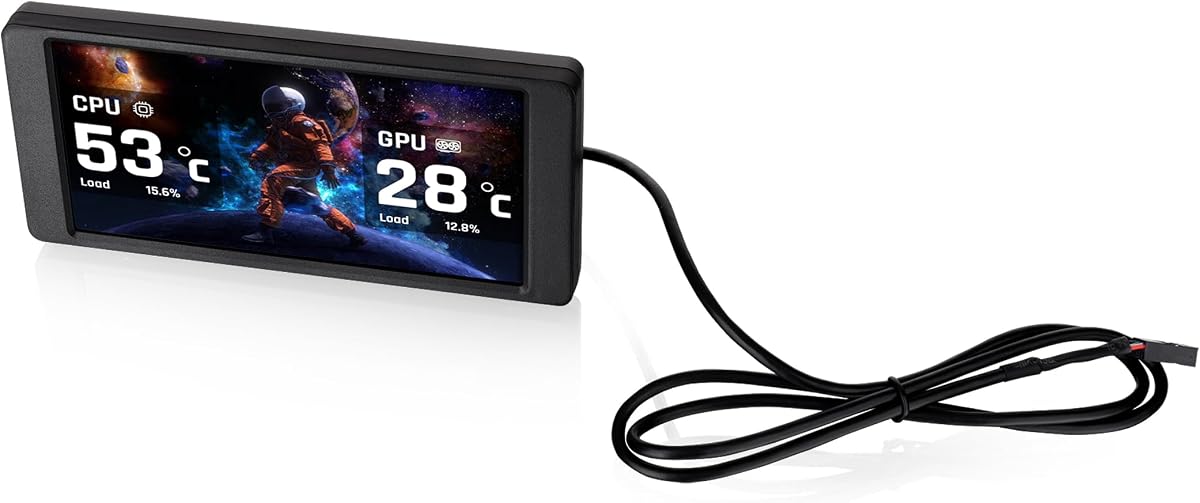
Thermalright offers a sleek 9.16-inch display designed to integrate cleanly into modern PC cases. Its compact dimensions allow it to fit in tight spaces while the 1920×480 resolution ensures that text and icons remain crisp and easy to read.
We may earn a commission when you buy through this link, at no additional cost to you.
The TRCC software provides a range of preset themes and DIY options for customization. This flexibility lets you design interfaces that match your exact needs whether you prefer detailed charts or minimalistic widget layouts for quick system checks.
Connection is handled via a simple USB-C interface which simplifies cabling and reduces clutter. This plug-and-play approach means you do not need complex drivers to get started making it accessible for beginners entering the case modding space.
Choose this model if you value simplicity and a clean aesthetic. It balances performance and cost effectively making it a reliable choice for those who want a wide view of their system stats without paying a premium for extra features.
Using a single USB-C line reduces cable mess inside your case helping you maintain a tidy internal layout for better airflow.
The software allows you to create custom layouts so you can tailor what data you see most frequently during your workflow.
We may earn a commission when you buy through this link, at no additional cost to you.
This Thermaltake kit is tailored specifically for their View 370 and View 390 series ensuring a seamless physical fit. The 6-inch display offers enough screen real estate to show meaningful data without overpowering the design of the chassis.
We may earn a commission when you buy through this link, at no additional cost to you.
Support for the TT RGB Plus 3.0 software brings robust customization options including support for various media formats. You can upload custom images or videos to personalize your build which adds a creative element to system monitoring.
The 1480×720 resolution provides good pixel density for a screen of this size. This clarity helps in reading text even from a distance which is useful if your PC sits under a desk or far from your primary viewing angle.
If you own a compatible Thermaltake case this is a natural choice for maintaining design consistency. While it is less versatile for other brands its specialized fit and reliable software support make it a strong option for brand loyalists.
The kit is designed to match your specific case model ensuring a professional look that looks like it came straight from the factory.
Support for MP4 and other formats lets you display personal photos or animations that reflect your unique personality and style.
We may earn a commission when you buy through this link, at no additional cost to you.
GeeekPi delivers a touch-enabled 12.6-inch panel designed to fit the Hyte Y60 perfectly. The 1920×515 resolution offers sharp visuals which combined with up to 10-point multi-touch interaction it enables advanced control options for your secondary screen.
We may earn a commission when you buy through this link, at no additional cost to you.
Because it works out of the box with Windows 7 through 11 and macOS you do not need extra drivers to get started. This plug-and-play convenience saves time and ensures the screen works immediately after mounting to your case.
The built-in speakers enhance functionality by allowing audio output directly from the case. This is useful if you want to hear notifications or media without running separate speakers across your desk cluttering your workspace area.
Choose this model if you want a touch-capable display for your Y60 without dealing with complex software. Its high resolution and ease of use make it a practical upgrade for users who want to interact with their stats directly.
Multi-touch allows you to zoom or swipe through information providing a modern interface that feels responsive and intuitive to use.
Support for both Windows and macOS broadens the user base making this screen suitable for cross-platform workstations.
We may earn a commission when you buy through this link, at no additional cost to you.
This Thermalright model features a magnetic suction design that eliminates the need for screws during installation. It attaches securely to compatible metal surfaces allowing you to mount or remove the screen quickly without tools or permanent modifications to your case.
We may earn a commission when you buy through this link, at no additional cost to you.
The 9.16-inch IPS panel provides accurate color reproduction and stable viewing angles which is essential for viewing system stats from different positions. Its resolution ensures that graphs and text remain legible even in a dark room.
Software control is handled via TRCC which allows you to set the screen to auto-start with your system. This automation means you do not need to manually launch the interface every time you boot up your PC for monitoring.
It is an excellent choice for modders who want to test different placements without drilling holes. The magnetic mechanism provides a secure hold while keeping the build flexible for future changes to your PC layout or components.
The magnetic design lets you install the screen without a screwdriver saving time during your build and avoiding permanent changes to your chassis.
Software automation ensures the monitor is ready as soon as you turn on your computer without needing manual intervention or additional clicks.
We may earn a commission when you buy through this link, at no additional cost to you.
For smaller builds or tight spaces this 6.86-inch screen offers a compact solution without sacrificing core features. It works well with CPU liquid coolers or specific case panels providing a dedicated spot for monitoring vital stats like temps and fan speeds.
We may earn a commission when you buy through this link, at no additional cost to you.
The magnetic panel design allows you to move the screen to different locations within the chassis easily. This flexibility is useful if you want to position the display near a window or where it is most visible to you.
Support for static and dynamic images means you can customize the look of your build to match your preferences. However the resolution is lower than wider screens so detailed text may appear less sharp from a distance.
Choose this model if you need a budget-friendly and space-efficient display. It serves well as a simple status monitor for basic information without requiring a large footprint or complex mounting hardware in your build.
Its small footprint makes it ideal for mini-ITX builds where space is at a premium and a large screen would obstruct airflow or components.
With a lower price point this screen provides an accessible entry into PC monitoring for budget builders who still want visual feedback.
We may earn a commission when you buy through this link, at no additional cost to you.
Selecting the right LCD screen involves balancing size, connectivity, and software features with your specific build requirements and hardware capabilities.
Screen size determines how much information you can display at once. Wider screens like 12.6-inch models offer more space for graphs and widgets while smaller 6 to 9-inch panels fit into tighter slots. Resolution affects text clarity with higher pixel counts ensuring sharp visuals even when viewed from a distance. Always measure your available space before purchasing to avoid fit issues.
Prioritize resolution that matches your viewing distance. A higher pixel count helps readability when text is small which is common in system monitoring overlays.
Connection types vary from USB-A and USB-C to HDMI and 9-pin headers. USB options provide plug-and-play simplicity and can serve as secondary monitors. HDMI allows more versatile display sources like Raspberry Pi. Internal headers integrate cleaner into builds without external cabling. Check your motherboard ports before buying to ensure compatibility.
Choose internal headers for a cleaner look and USB for flexibility. Ensure your case has space for routing cables effectively without blocking airflow.
Software quality impacts usability as it controls themes data visualization and system monitoring. Some vendors provide dedicated apps with easy themes while others rely on third-party tools like AIDA64. Look for software that supports auto-start and offers intuitive customization without requiring technical knowledge. Cross-platform support is a bonus if you use multiple operating systems.
Verify that the software is regularly updated and supports your OS. Good software reduces the learning curve and enhances the overall user experience significantly.
Mounting mechanisms range from brackets and screws to magnetic suction or adhesive pads. Brackets offer secure fixed positions but may limit placement. Magnetic options allow repositioning without tools which is great for testing layouts. Ensure the mounting hardware fits your case panel type whether tempered glass or metal.
Select mounting based on how often you plan to move the screen. Magnetic is best for frequent changes while brackets suit permanent installations where stability is key.
IPS panels generally provide better viewing angles and color accuracy than TN panels. Brightness measured in cd/m² ensures visibility in brightly lit rooms. High brightness reduces eye strain and keeps the screen visible from side angles. Check the panel type in specs to ensure consistent visuals from all positions.
Opt for IPS panels with high brightness if your case is often visible in well-lit environments for clear text and image quality.
Most screens run via USB but some require external power or 5V adapters. Low power options are better for builds relying on header power to avoid overloading ports. Consider efficiency if you plan to leave the screen on 24/7 as higher consumption adds to electricity usage over time.
Check if the screen can run off your USB header efficiently. If not ensure your PSU has free connectors for external power needs.
Some screens function as extended desktop monitors via HDMI or USB while others are strictly for sensor data. Secondary mode support adds value for multitasking allowing you to use the screen for chat or music apps. Confirm drivers support desktop mode if this is a priority for your workflow.
If you need a second display check for HDMI or USB video output support. This adds functional utility beyond simple system monitoring inside the case.
Built-in speakers eliminate the need for external audio devices for system sounds or media. While not replacement for high-quality desk speakers they offer convenience for simple alerts. If audio is important prioritize models that include dual speakers and clear output.
Consider this feature if you want to reduce desk clutter. Integrated audio saves space and simplifies your setup significantly.
Connect the screen securely to your motherboard USB header or use the included USB cable for power. If using a 9-pin adapter ensure it is fully seated to prevent intermittent disconnections during system use.
Install the vendor's software on your computer before starting the system. Configure themes and layout preferences within the application so the screen displays your desired data upon boot without needing extra clicks.
Clean the screen gently with a microfiber cloth to avoid scratches. Do not use liquid cleaners directly on the panel to prevent damage to the internal electronics or the protective coating on the surface.
Most universal screens work with any case that has space and USB headers. However some models are designed specifically for certain case panels like Hyte Y60. Always check dimensions and mounting brackets before buying to ensure compatibility with your chassis.
Yes many USB-powered screens function independently without using GPU ports. They connect to USB headers or external ports allowing you to save HDMI or DisplayPort connections for your main monitor and peripherals.
Not all screens require AIDA64. Some come with free dedicated software like L-Connect or Station Space. However models lacking native software often rely on AIDA64 for system monitoring data which requires a separate purchase.
Most vendors provide downloadable software but it is not always included on a disc. You usually need to visit their website to download the latest version. Some require you to download third-party tools manually for full functionality.
Yes most support custom images videos and widgets. Software packages often allow you to upload personal media or create custom themes using drag-and-drop editors for personalized displays.
Power usage is generally low often under 5 watts for USB powered units. It should not impact overall system performance but always verify if your motherboard USB headers can handle the load without overloading the port.
Compatibility varies by model. Some like GeeekPi support macOS while others are Windows only. Check product specifications carefully if you use a Mac since software support may be limited on non-Windows operating systems.
Mounting depends on the model and case type. Use included brackets for fixed installs or magnetic mounts for temporary setups. Always tighten screws properly to avoid loosening due to vibrations during operation.
We have reviewed ten top LCD screens for PC cases ranging from compact magnetic displays to wide-format panels with audio and touch. Each offers distinct features that suit different build styles and functional needs for system monitoring and aesthetics.
Prioritize resolution and mounting options based on your case design. If you need a secondary monitor look for HDMI or USB video support. For simple stats choose models with intuitive software and plug-and-play setup to save time during installation.
Prices and availability change frequently so always check current listings before purchasing. Ensure your motherboard has the necessary ports and your case has the space for the screen you choose to maintain optimal airflow and performance.